
Learn AITracker step by step
From installation and shipment of the film to measurement configuration, results control and reporting.
Select a stage of work
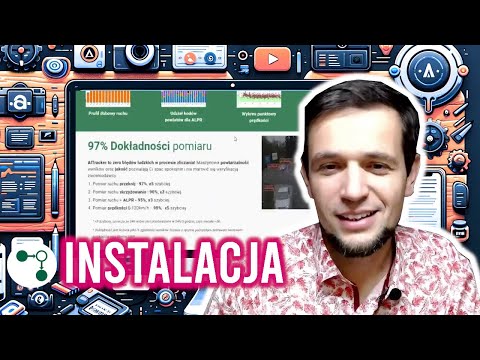
How to download and install AITracker software?
Video description
In this guide, you will learn how to download the program and go through the entire process of installing it on your computer. You will become familiar with the application interface and check how to open sample data directories to immediately test the system's functions in practice. This is a short instruction that will allow you to efficiently prepare the tool for working with traffic analysis.

Cross-sectional measurement setup, ALPR and anonymization
Video description
In this material, you will learn how to properly configure video for cloud processing by selecting appropriate services, such as vehicle counting or ALPR license plate recognition [00:19] You will learn to define traffic relations, draw measurement cross-section lines and manage vehicle classification categories loaded from your catalogs [01:42] You will also go through the process of setting the anonymization of personal data, which will allow you to effectively blur selected elements, e.g. license plates or silhouettes of passers-by, ensuring the privacy of your recordings [07:08].
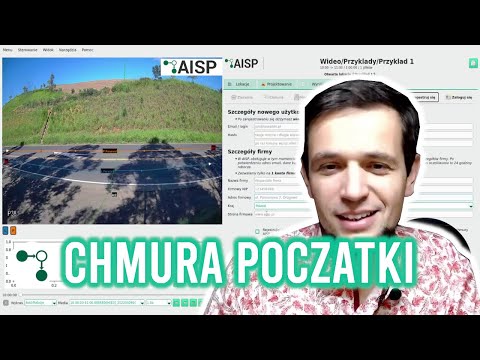
How to send a video to the cloud? Registration and login
Video description
In this guide, you will learn how to go through the registration process and log in to the cloud in order to use recording analysis services [00:19] You will learn how to correctly complete your company data and verify your account, and then unlock the file transfer functions directly from the program [02:38] Finally, you will see how to select selected video directories and send them for processing, monitoring the sending progress in the status bar [03:42].

How to download results from the cloud?
Video description
In this guide, you will learn how to check the status of your orders in the cloud and go through the process of downloading ready results to your computer [00:41] You will see how to view the received data, including traffic flow charts and vehicle classification tables, and check the effects of the anonymization module [01:44] You will learn to download results individually or collectively, which will allow you to efficiently manage all processed measurements in one place [02:13].
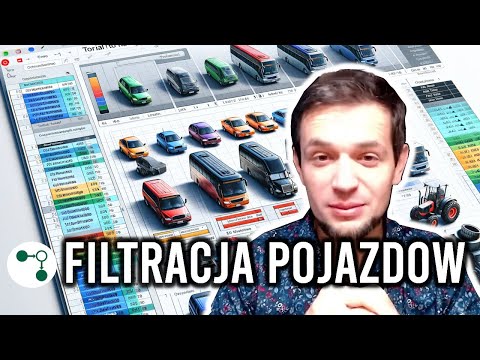
How to navigate through the results and filter data?
Video description
From this material you will learn how to efficiently manage downloaded results, change relationships and reclassify data to obtain precise summaries [00:17] You will go through the process of visualizing vehicle trajectories on a relationship map [01:00], you will learn to use cross-sections to filter traffic lanes more precisely [03:31] and you will see how to change the vehicle classification category and generate ready-made reports in the form of spreadsheets [05:20] This is essential knowledge that will allow you to fully control the quality and form of the traffic analyzes received.
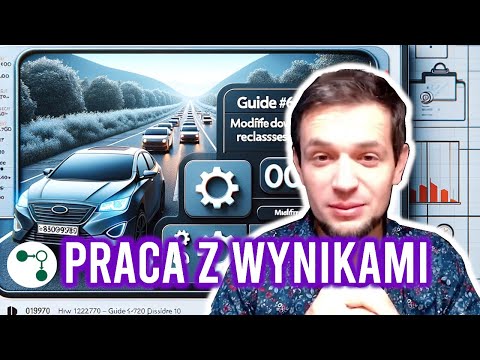
How to change results, reclassify data and generate reports?
Video description
In this guide, you will learn how to improve the results you have already downloaded by changing vehicle relationships and classifying the data according to your needs [00:07] You will go through the process of visualizing the movement trajectory on a relationship map [01:00], you will learn how to draw cross-sections for specific lanes [03:31] and select appropriate vehicle categories for domestic and foreign measurements [04:09] Finally, you will see how to generate ready-made reports in the form of sheets and text files that contain detailed charts and summaries of data from your analysis [05:29].
How to configure an intersection and a roundabout?
Video description
In this guide, you will learn how to properly configure an intersection and roundabout to ensure precise traffic measurement [00:18] You will learn to draw turning relations, define inlets and outlets, and see how the system automatically recognizes the directions of vehicle movement [01:13] You will also learn how to send prepared data to the cloud and how to interpret the obtained results using relationship filters and traffic maps [04:38].
What movies does the system support, how to set FPS and default parameters?
Video description
In this guide, you will learn how to improve the results you have already downloaded by changing vehicle relationships and classifying the data according to your needs [00:07] You will go through the process of visualizing the movement trajectory on a relationship map [01:00], you will learn how to draw cross-sections for specific lanes [03:31] and select appropriate vehicle categories for domestic and foreign measurements [04:09] Finally, you will see how to generate ready-made reports in the form of sheets and text files that contain detailed charts and summaries of data from your analysis [05:29].
How to count pedestrians and cyclists (Categories A1-A3 and I1-I3)?
Video description
In this material you will learn how to properly configure the measurement of pedestrian and bicycle traffic to separate it from road traffic using cross-section lines [00:43] You will learn to use the extended GPR classification (groups A and I) and generate dedicated result sheets in accordance with the latest guidelines [03:45] You will also see how to filter data in charts and analyze reports for individual hours, which will allow you to precisely study traffic intensity on sidewalks and pedestrian crossings [04:29].
How to check the quality of the results after completing the measurement?
Video description
In this guide, you will learn how to verify the correctness of the collected data and what is worth checking immediately after the system completes the calculations [00:17] You will go through the process of analyzing the relationship map in search of countless vehicles [00:31] and you will learn how to filter results using Kid charts and tables, which will allow you to manually correct any classification errors [04:00] Thanks to these tips, you can independently assess the quality of automatically generated traffic maps and make sure that the final report is fully reliable [05:10].
How to measure vehicle speed?
Video description
In this guide, you will learn how to measure the speed of vehicles using the AITracker program, determining the appropriate measurement section and defining its length in meters [00:17] You'll walk through the process of setting up measurement lines and see how to read speed results directly on vehicle tags and in the results table [01:30] Finally, you will learn how to generate reports and sheets with speed charts, which will allow you to conduct a detailed statistical analysis of the collected data [02:00].
Cropping, zoom and many measurement configurations.
Video description
In this guide, you'll learn how to prepare multiple measurement setups for a single video and how to use the crop and zoom features to increase measurement accuracy [00:18] You will go through the process of defining additional settings for specific areas, such as pedestrian crossings, which will allow you to better recognize smaller objects thanks to precise image framing [01:30] You will also see how to manage the list of configurations in the project, which will enable you to extract the maximum amount of data from one location while maintaining full control over the cloud computing process [02:07].

How to blur license plates and pedestrians in a video?
Video description
In this guide, you will learn how to configure the anonymization function to effectively blur license plates, silhouettes of pedestrians or entire vehicles in your recordings [00:18] You will go through the process of selecting specific groups of objects to hide and learn how to send orders to the cloud and efficiently download processed files [01:24] Using practical examples, you will also see how to find ready-made films in the resulting catalogs and verify the effects of blurring algorithms [02:12].
How to manually correct counting results?
Video description
In this guide, you will learn how to use the new "Paint" function, which allows you to quickly, manually correct vehicle categories and turning relationships directly in the recording. You will go through the process of data verification using a trajectory and traffic map, and you will also learn how to turn off incorrect counts and merge broken vehicle tracks. Thanks to these tips, you will be able to fine-tune the final reports yourself, ensuring the highest precision of traffic analysis results.
Haven't found a solution in the guides?
Describe the problem, attach necessary information or send a comment about AITracker.